Documentation
Using the inbox.
Find a conversation, reply (yourself or with the AI), organize and stay in control, all from a single screen.
The inbox at a glance
The MA Utility inbox is a single shared inbox where all your conversations arrive, whatever the channel: WhatsApp, Instagram, Messenger, Telegram, email and live chat. There you read, reply (yourself or via the AI), assign and organize every exchange from one screen, without switching tools.
Unlike a regular mailbox, each conversation carries a status, a priority, an owner and the customer's full profile next to the message thread.
Before you start
To use the inbox, you need:
- at least one connected channel (go to Settings → Channels; see the getting-started guide);
- to be logged in to your MA Utility dashboard;
- the new inbox enabled on your account.
Don't see the new interface described here? It is being rolled out. Contact support to enable it on your account.
Understanding the screen
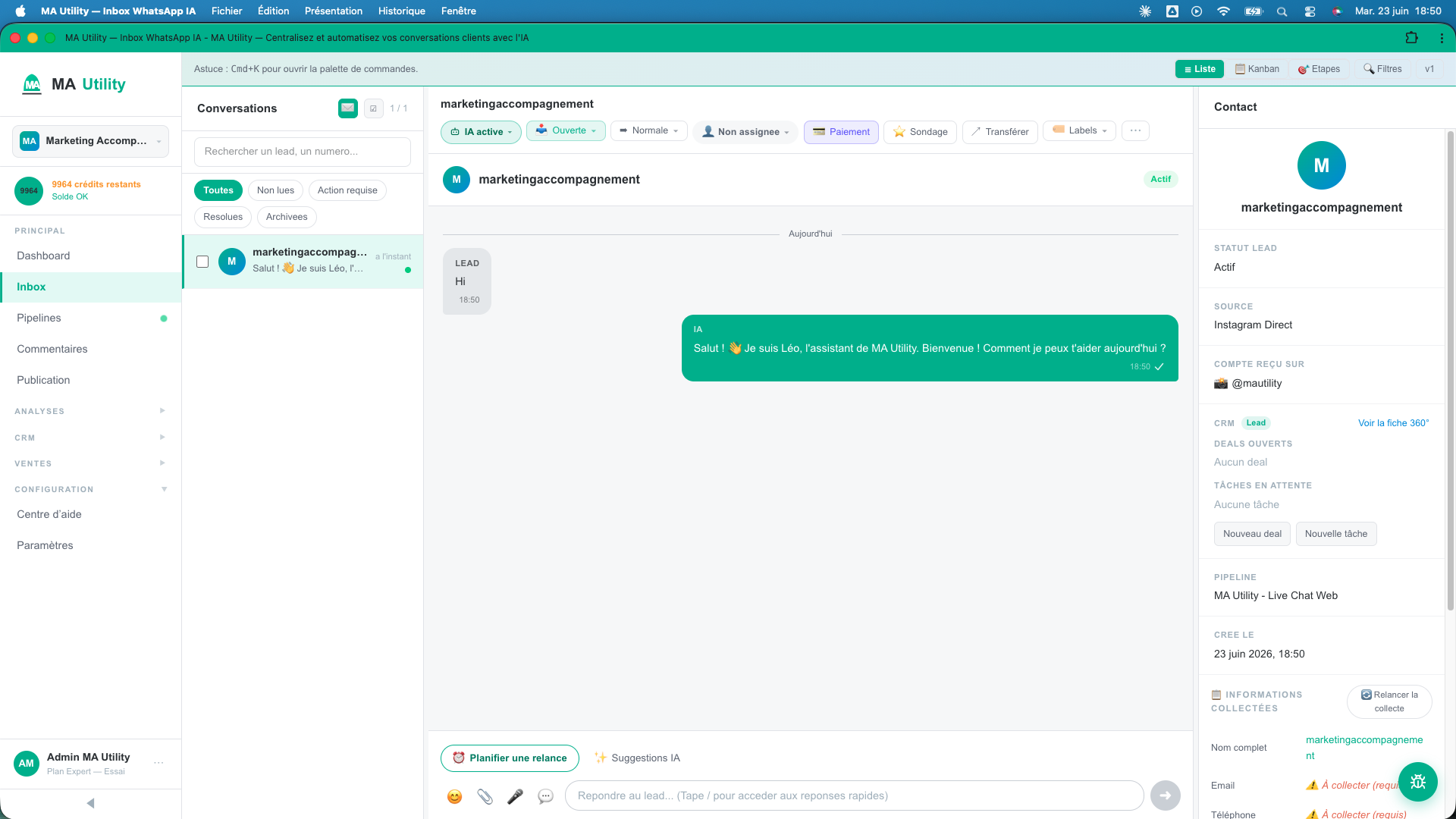
The inbox is laid out in three columns, which you can resize:
- On the left - the conversation list, with search, tabs and filters.
- In the center - the message thread of the selected conversation, and the reply area at the bottom.
- On the right - the contact panel: customer details, appointments, notes.
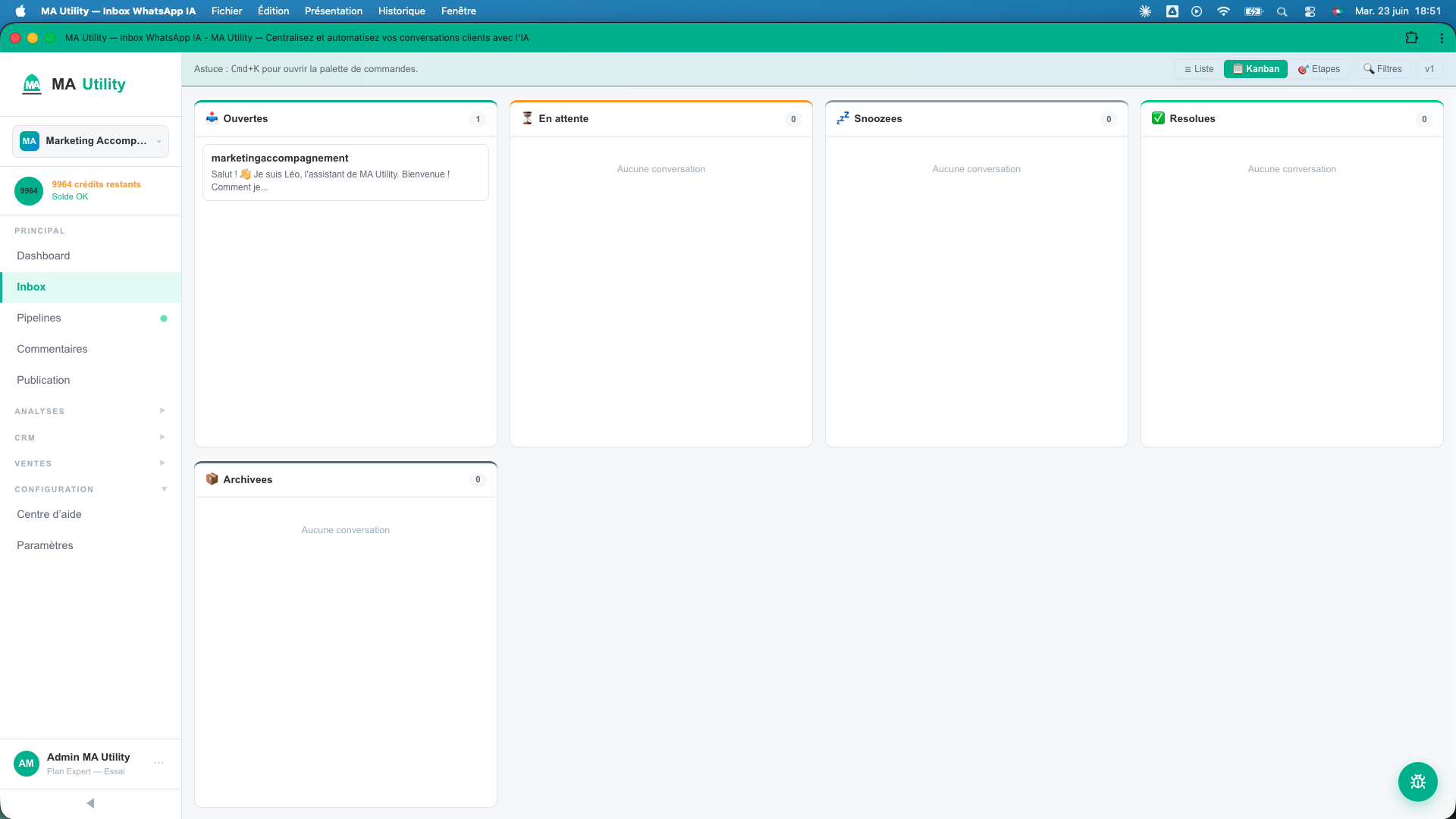
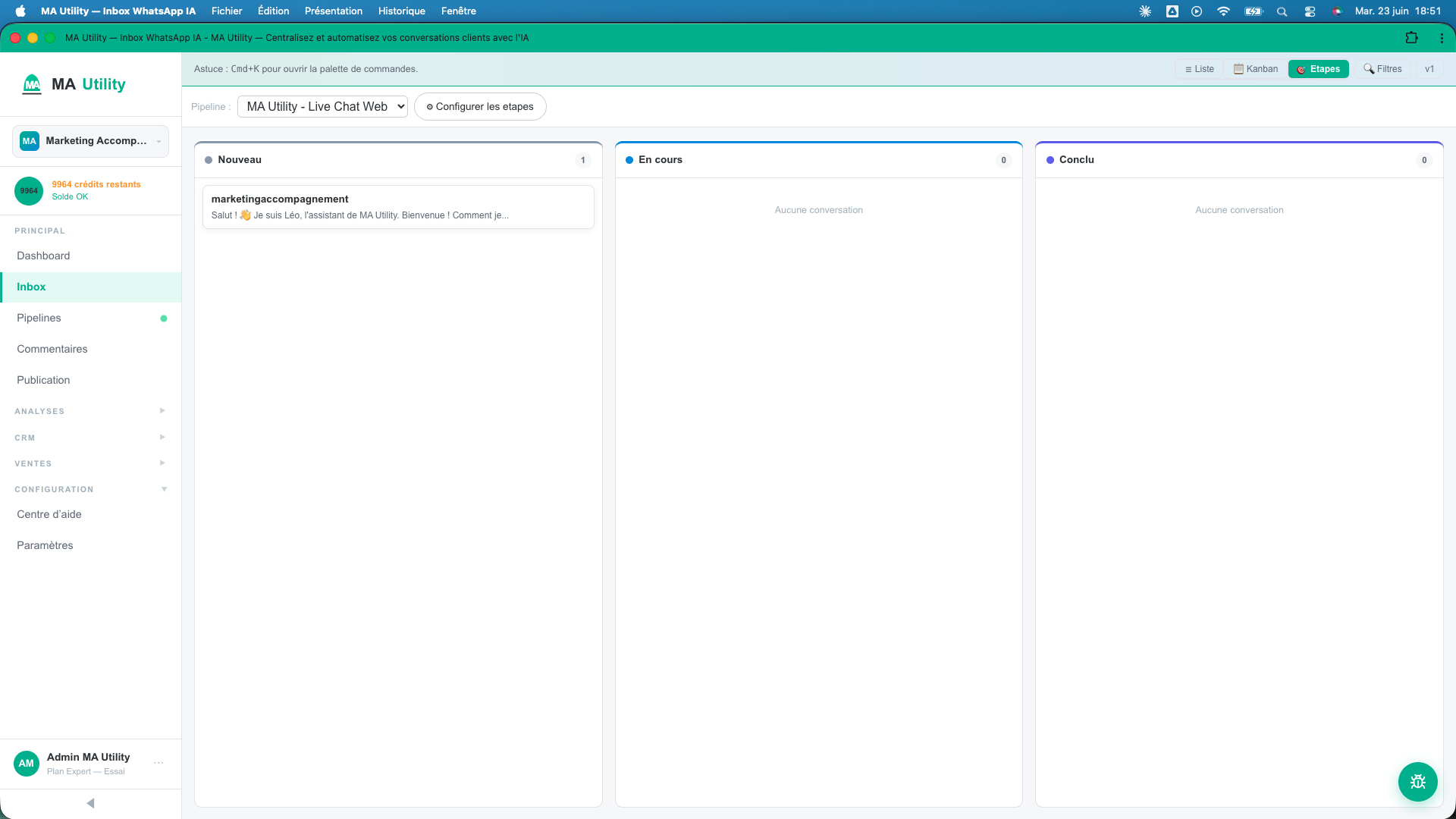
At the top of the screen, three toggles change the layout: "Liste" (List, the default), "Kanban" (columns by status) and "Étapes" (Stages, columns by stage of your pipeline).
Find a conversation
Three ways, from fastest to most precise: search, tabs, filters.
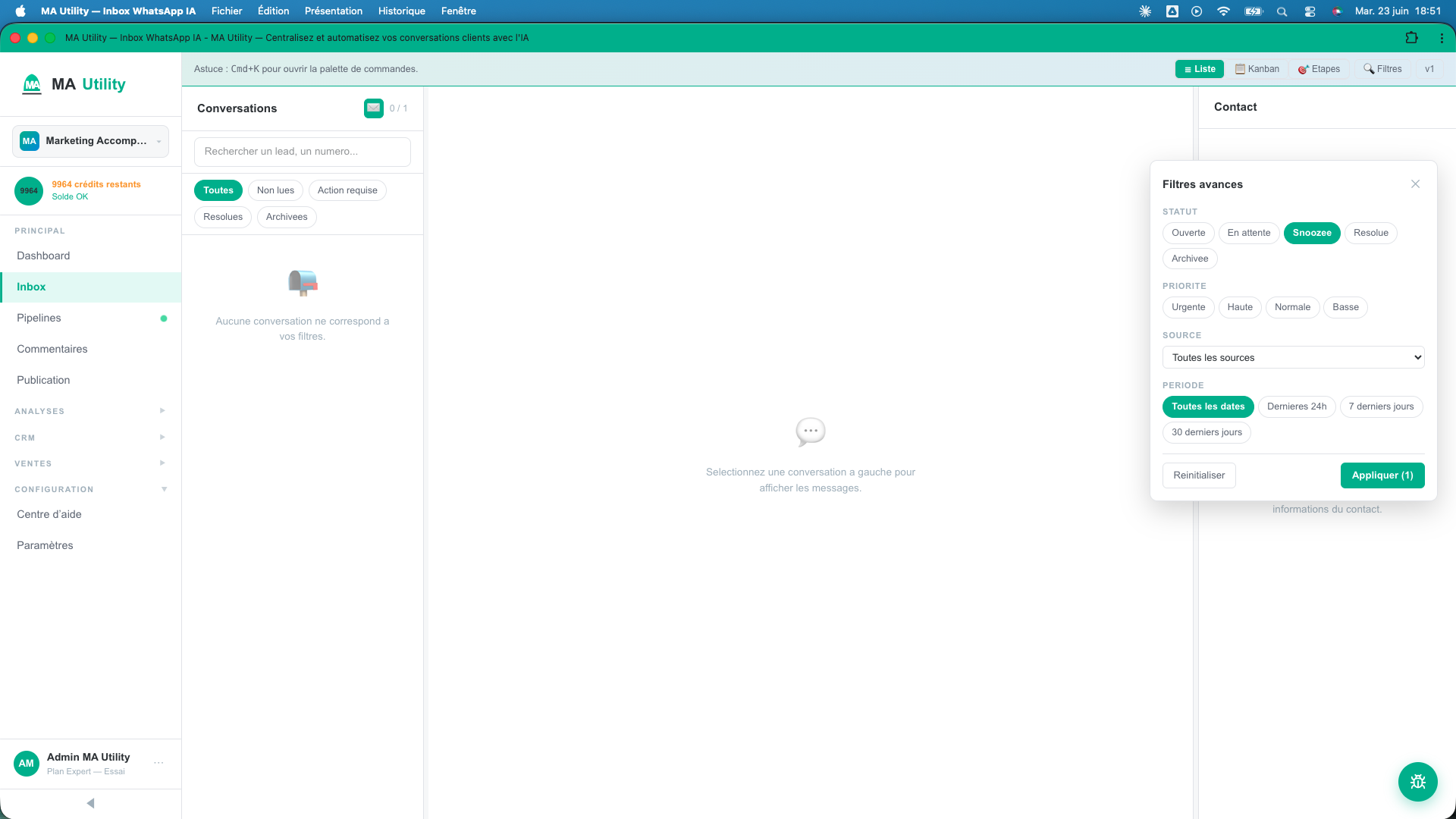
- Search - in the Rechercher un lead, un numéro... (Search a lead, a number...) field, type a name, a number or a snippet of a message. The list filters in real time.
- Quick tabs - below the search: "Toutes" (All), "Non lues" (Unread), "Action requise" (Action required, the conversations waiting for a human), "Résolues" (Resolved) and "Archivées" (Archived).
- Advanced filters - the "Filtres" (Filters) button opens a panel to combine criteria: status, priority, labels, source (channel or pipeline) and period ("Dernières 24h" / last 24h, "7 derniers jours" / last 7 days, "30 derniers jours" / last 30 days).
Expected result: the list shows only the conversations matching your criteria, with an "X / Total" counter.
Reply to a customer
Click a conversation, type your reply in the input area, send.
- Open the conversation by clicking it in the list: the thread appears in the center.
- Read the history. The messages you send carry a receipt: ✓ sent, ✓✓ delivered, ✓✓ blue read, and a cross if sending failed (hover over it for the reason).
- Type your message in the input area at the bottom. You can add an image or a file, and emojis.
- Send with the send button or the Ctrl + Enter shortcut. The message appears in the thread right away.
Internal notes ≠ customer reply. Internal notes are entered in the right-hand panel and stay private to your team. They are never sent to the customer.
Reply faster with the AI
MA Utility offers you ready-to-send replies, and can also reply on its own.
Reply suggestions
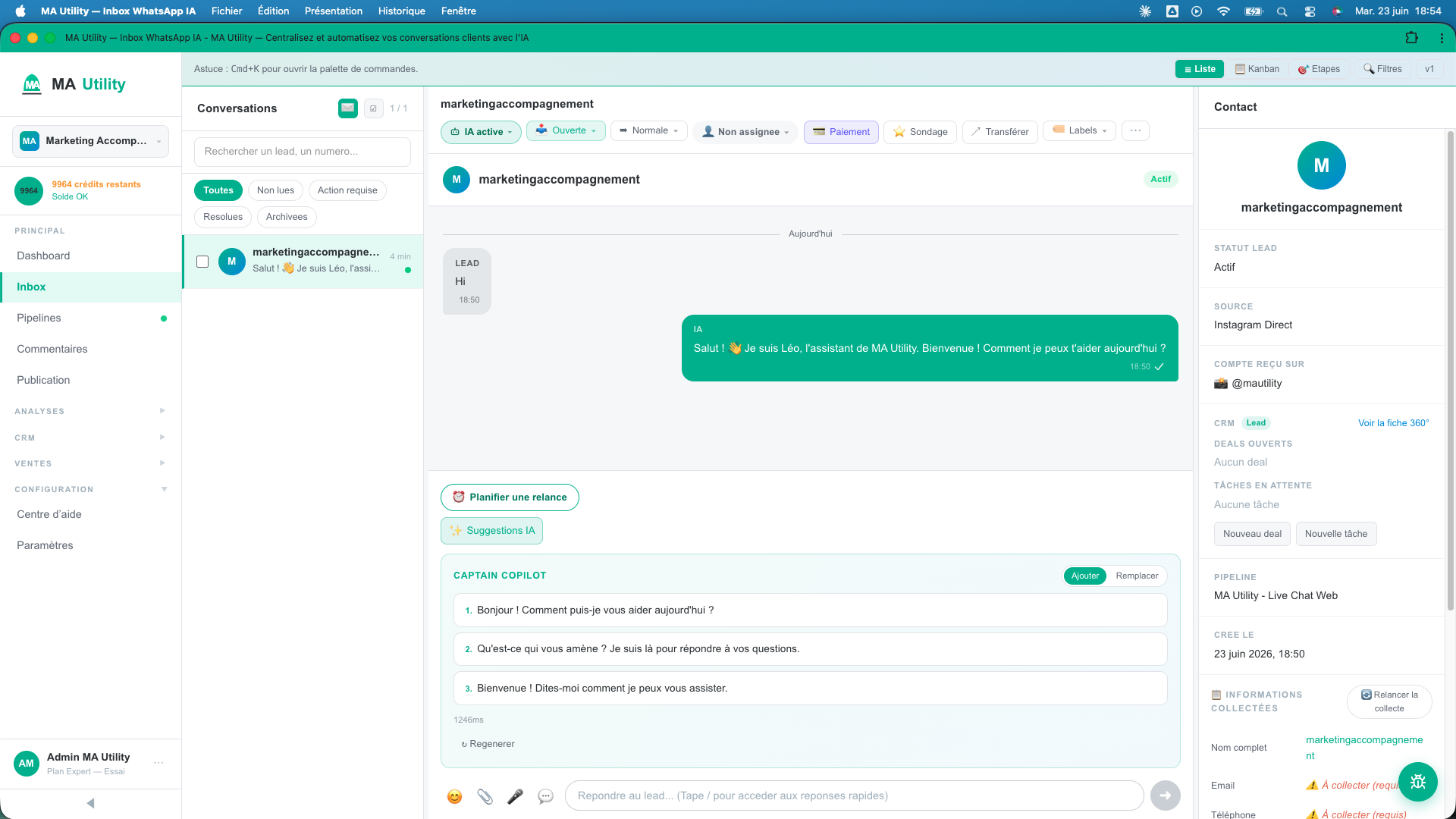
- Below the reply area, click "Suggestions IA" (AI suggestions) (or the Cmd / Ctrl + I shortcut).
- Three proposals appear, based on your knowledge base and the history.
- Click "Ajouter" (Add) to insert the suggestion after your draft, or "Remplacer" (Replace) to replace what you have written.
- Adjust the text if needed, then send. "Régénérer" (Regenerate) offers other wordings.
The AI replying on its own (and how to take over)
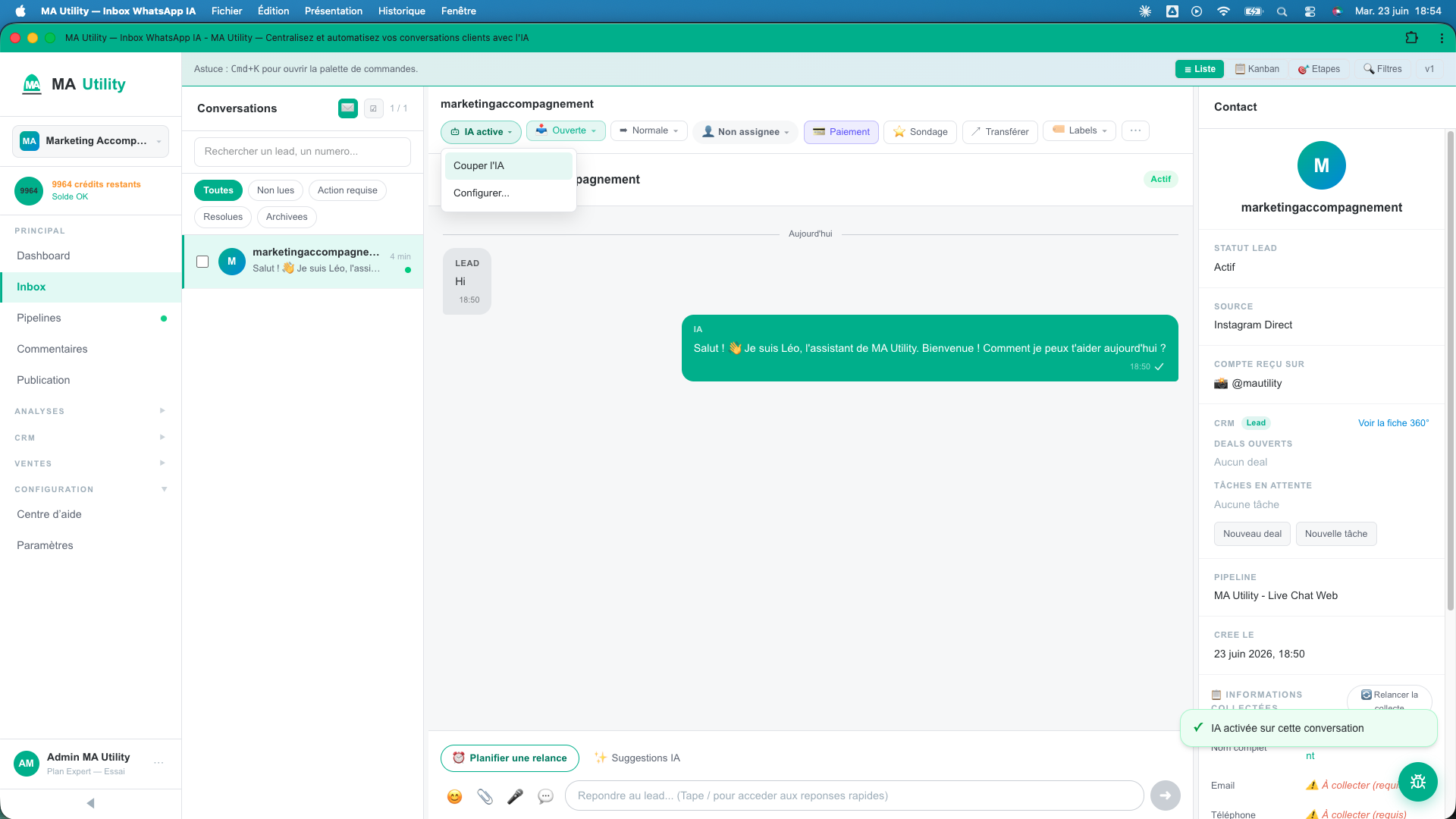
At the top of each conversation, a badge shows the AI's state: "ON" (the AI replies automatically), "OFF" or "Pause". Click this badge to "Couper l'IA" (turn off the AI) or "Réactiver l'IA" (turn the AI back on), or to "Configurer" (Configure) its source and its knowledge base.
You can take over at any time: as soon as you type a message while the AI is active, it automatically goes into pause on that conversation.
WhatsApp window & templates
On WhatsApp, you can only reply freely for 24 hours after the customer's last message. Beyond that, Meta requires sending an approved template.
- When the window is closed, a banner says so: Fenêtre de 24h fermée. Envoie un template approuvé pour ré-engager ce contact. (24h window closed. Send an approved template to re-engage this contact.)
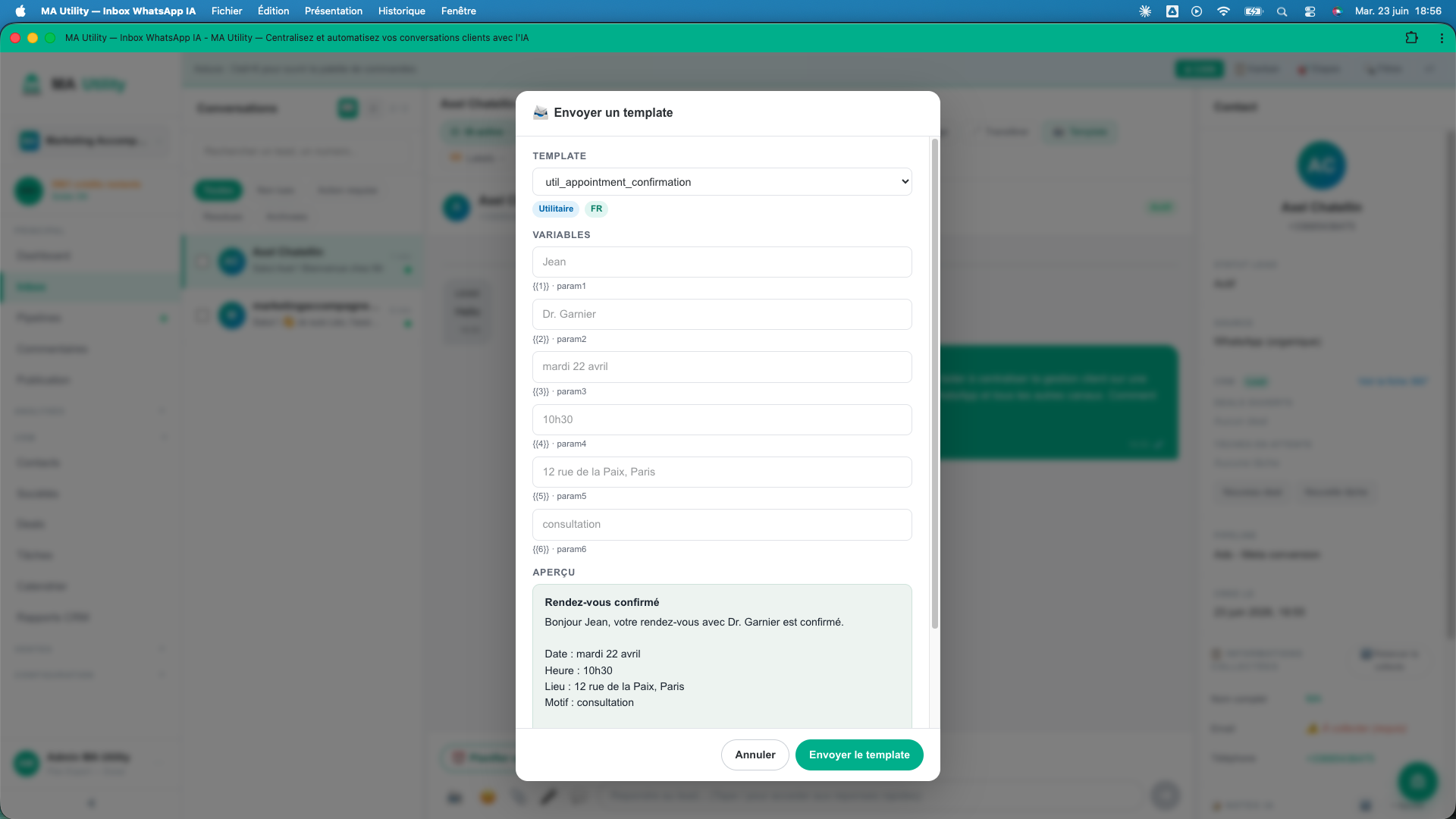
- Click "Envoyer un template" (Send a template), choose a template from the list, fill in the variables if needed, then check the preview ("Preview").
- Send: the message goes out even outside the 24h window.
To start a new WhatsApp conversation, use the green new-message button at the top of the list: choose the pipeline, enter the number and select an approved template (required for a first contact).
Organize your conversations
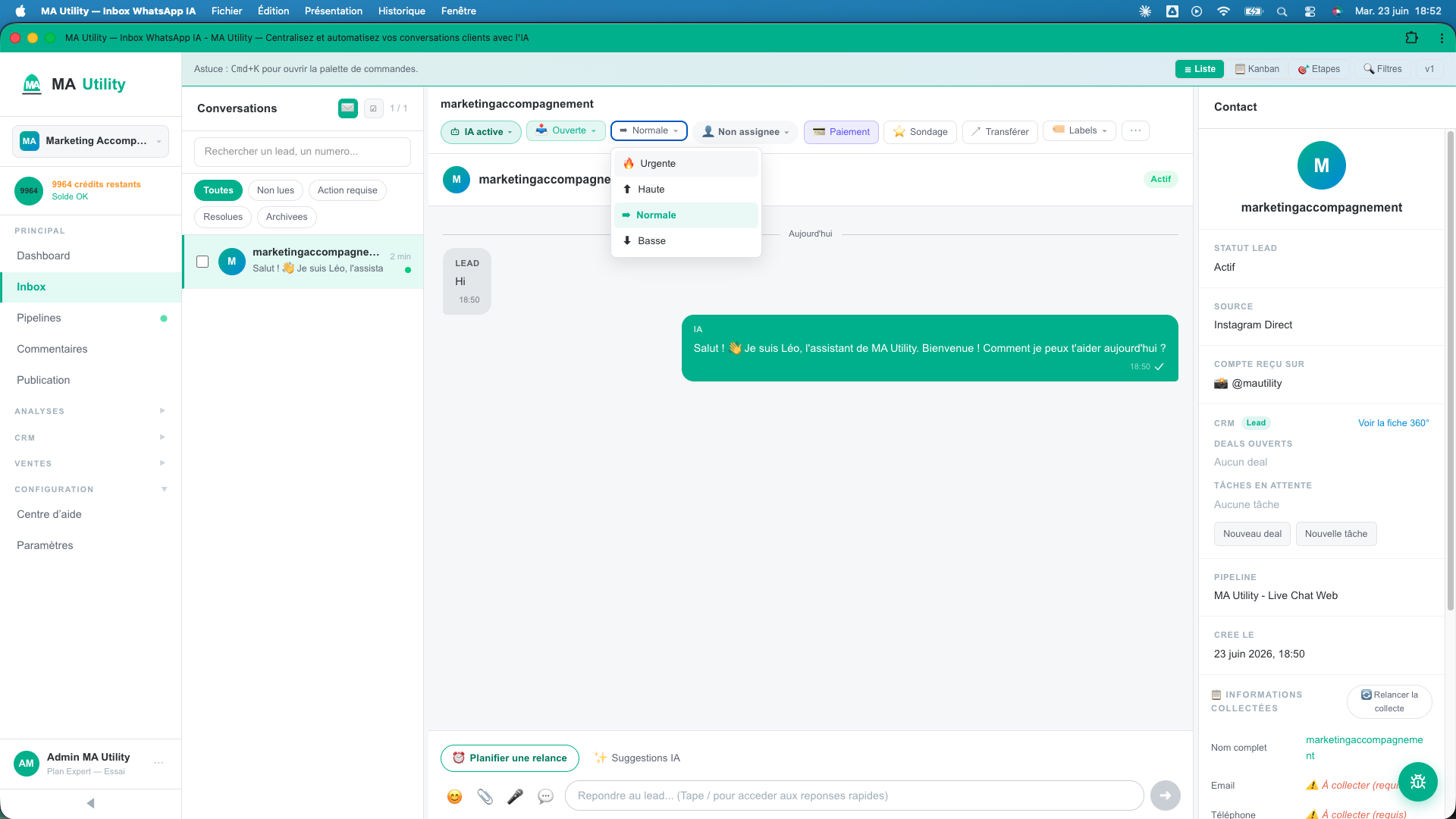
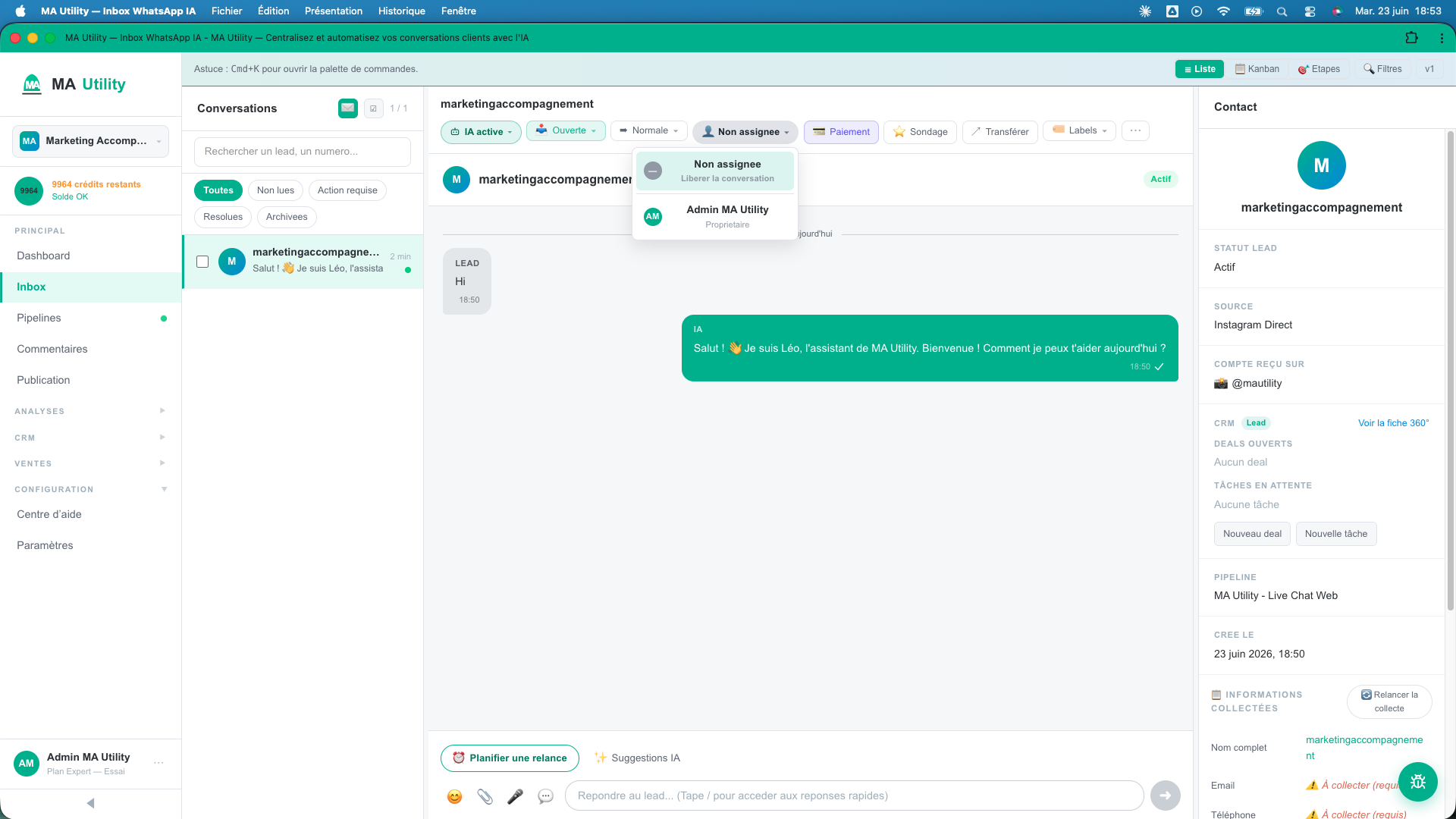
Each conversation carries a status, a priority, an owner and labels, all adjustable from the conversation header.
- Status - "Ouverte" (Open), "En attente" (Pending), "Snoozée" (Snoozed), "Résolue" (Resolved) or "Archivée" (Archived).
- Priority - "Urgente" (Urgent), "Haute" (High), "Normale" (Normal) or "Basse" (Low).
- Assignment - via the "⋯" menu then "Assigner à" (Assign to), assign the conversation to a team member (the badge switches from "Non assignée" / Unassigned to their first name).
- Labels - add colored labels to classify and filter.
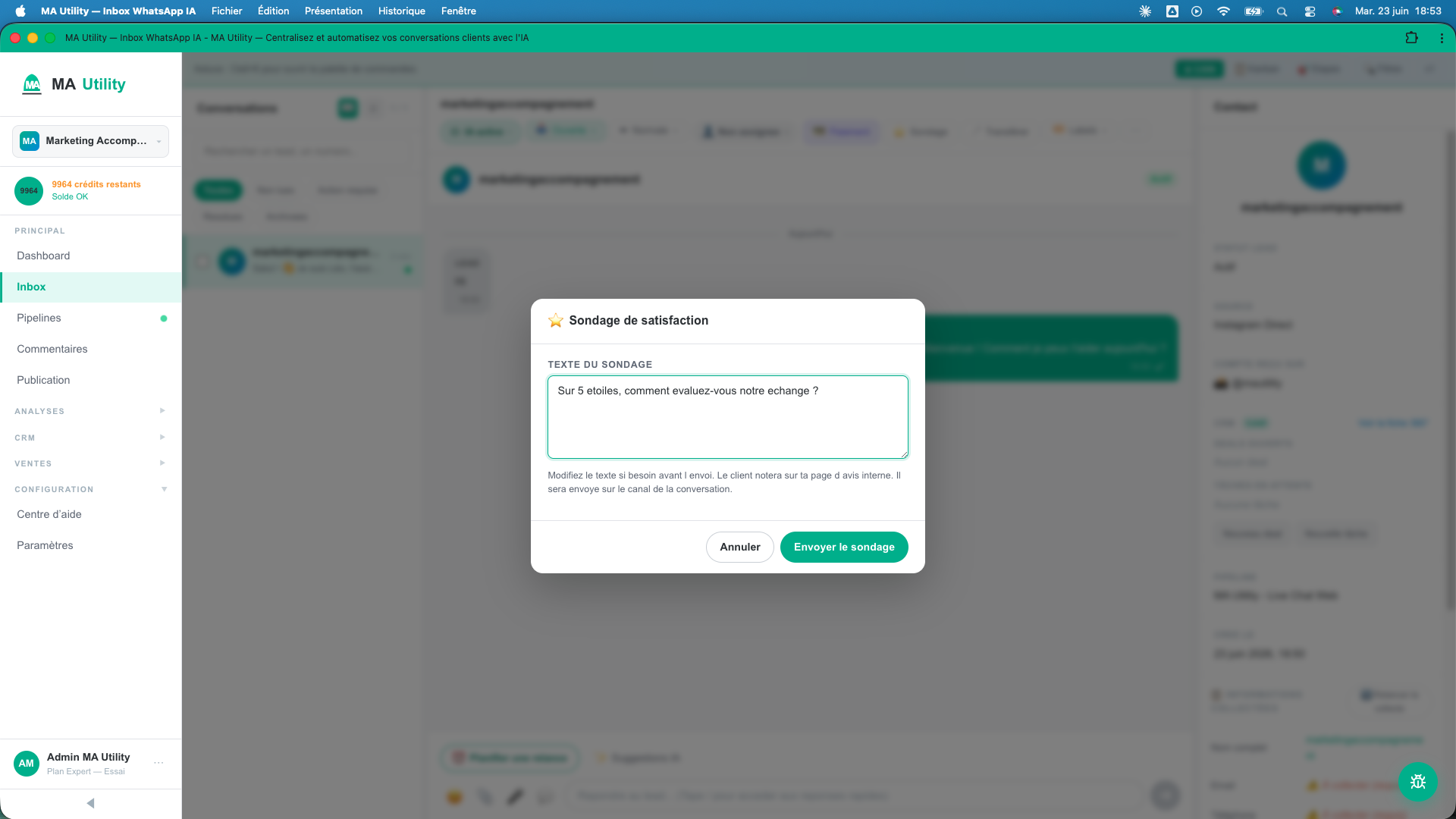
The "⋯" menu also gives access to: "Envoyer un sondage CSAT" (Send a CSAT survey), "Envoyer un lien de paiement" (Send a payment link), "Transférer la conversation" (Transfer the conversation) and "Supprimer" (Delete).
Snooze & follow up
Put a conversation on hold until a date, or schedule an automatic follow-up.
- Snooze - set the status to "Snoozée" (Snoozed) and choose a date and time. The conversation disappears from the list and reappears there automatically when the time comes.
- Schedule a follow-up - from the conversation, schedule a follow-up message; it shows in the right-hand panel and stays cancellable as long as it hasn't gone out.
The contact panel
The right-hand column gathers everything you know about the customer, without leaving the conversation:
- contact details (email, phone), lead status, source and the account the message arrived on;
- pipeline and upcoming appointments;
- custom attributes and notes;
- AI analysis: an automatic summary of the conversation and its key points;
- internal notes (mention a colleague via @) and scheduled follow-ups;
- GDPR actions: export the contact's data or delete it permanently.
Kanban & bulk actions
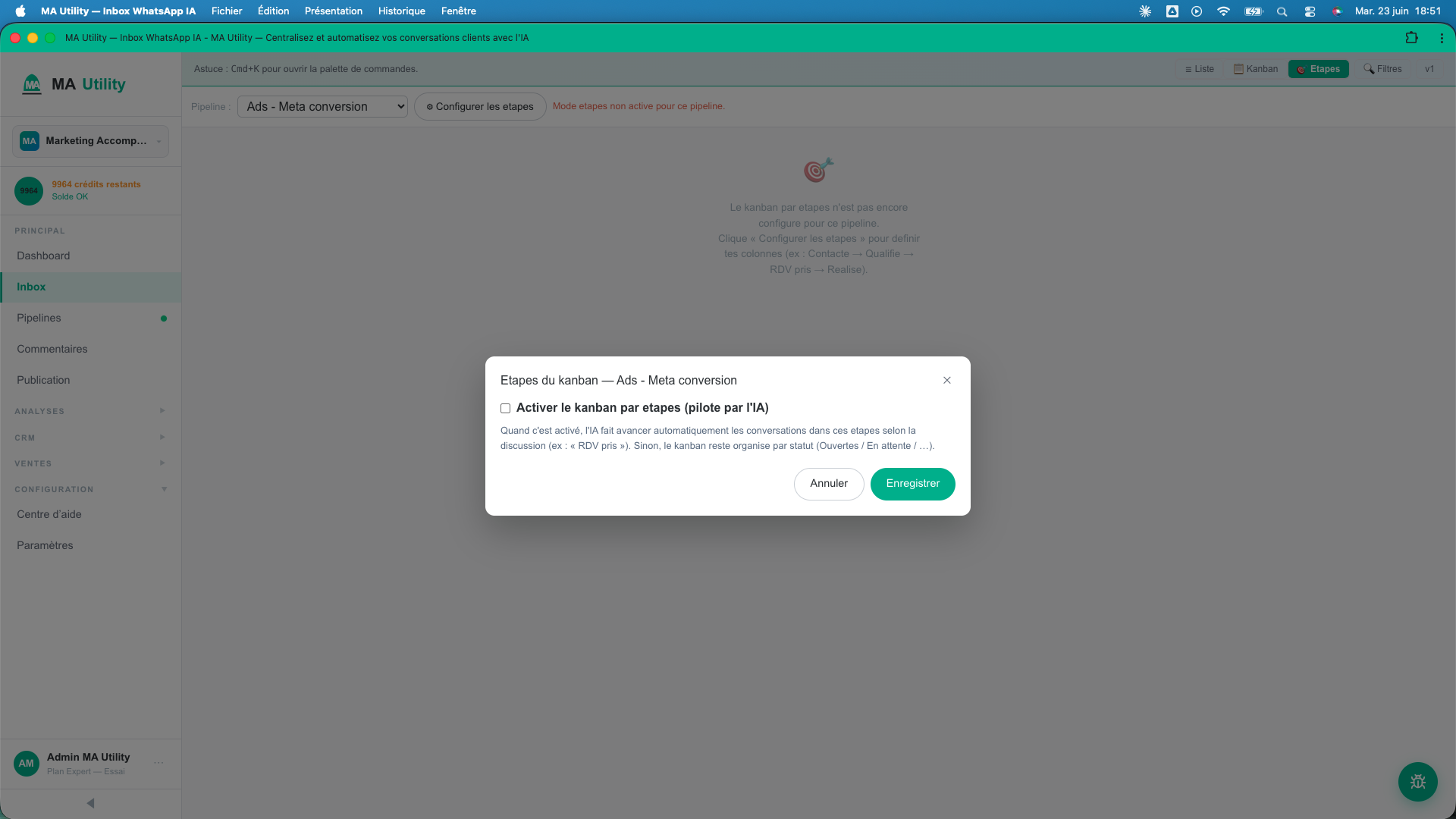
To manage visually, switch to "Kanban": your conversations show as columns by status. "Étapes" (Stages) organizes them by stage of your pipeline (the "Configurer les étapes" / Configure stages button lets you define them). Drag and drop a card from one column to another to change its status or its stage.
To act on several conversations at once, check them in the list: a bulk-actions bar appears at the bottom to change the status, priority, labels or delete in bulk.
Keyboard shortcuts
| Shortcut | Action |
|---|---|
| Cmd / Ctrl + K | Open the command palette (navigation and quick actions) |
| Cmd / Ctrl + I | Show / hide the AI suggestions |
| Ctrl + Enter | Send the message being typed |
| Esc | Close the conversation pane (in Kanban or Stages view) |
Troubleshooting
| Symptom | Likely cause | Fix |
|---|---|---|
| The inbox is empty ("Aucune conversation" / No conversations) | No channel connected, or no message received, or an active filter | Connect a channel, then make sure you are on the "Toutes" (All) tab and clear the filters |
| A conversation no longer appears | It is hidden by a tab or a filter (e.g. "Archivées" / Archived) | Switch back to "Toutes" (All) and reset the filters |
| My message is marked as failed | Sending impossible (WhatsApp window closed, unsupported media, channel in error) | Hover over the cross to read the reason; on WhatsApp outside the 24h window, send an approved template |
| The AI does not reply | The AI is "OFF" or "Pause", or the knowledge base is empty | Click the AI badge → "Réactiver l'IA" (turn the AI back on), and check its configuration and your knowledge base |
| I don't see this interface | The new inbox is not yet enabled on your account | Contact support to enable it |
FAQ
Where do my conversations arrive?
All in the single inbox, whatever the channel (WhatsApp, Instagram, Messenger, Telegram, email, live chat). You manage everything from one screen.
Can the customer see my internal notes?
No. Internal notes stay private to your team and are never sent to the customer.
How do I take over from the AI?
Click the AI badge then "Couper l'IA" (turn off the AI), or simply type a reply: the AI automatically pauses as soon as it detects a human takeover.
Why do I have to send a template on WhatsApp?
Outside the 24-hour window following the customer's last message, Meta requires an approved template to re-engage the contact.
Can I handle several conversations at once?
Yes: check several conversations in the list, then use the bulk-actions bar (status, priority, labels, deletion).
Ready to manage all your conversations in one place?
7 days free, 100 credits included. Connect a channel and let the AI reply starting today.
Start the free trial